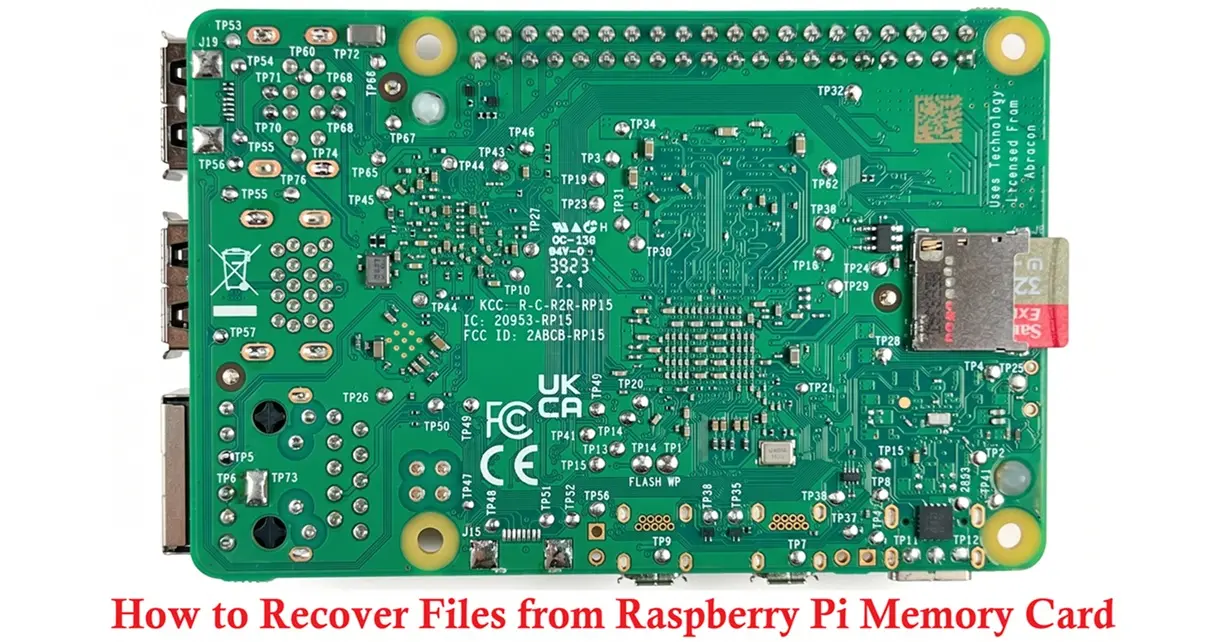
A Raspberry Pi memory card may become unreadable for various reasons, leaving important files out of reach. Corruption, accidental deletion, formatting errors, and unexpected shutdowns can all lead to data loss.
While recovery is often possible, the chances of success can vary significantly depending on what happened to the memory card.
Raspberry Pi SD Card Recovery Chances
Some types of data loss leave files largely intact, while others can make recovery considerably more difficult. To better understand what to expect, let’s take a closer look at the recovery chances associated with different data loss scenarios.
- Accidental deletion offers some of the best recovery prospects because the operating system usually removes only the file’s entry from the file system while the actual data remains on the card. As long as new information does not overwrite that space, recovery often succeeds. This is why users who stop using the card immediately after deletion typically achieve better results than those who continue to save new files.
- Formatting can also result in relatively high recovery rates, especially when the card undergoes a quick format. Although the file system structure changes, much of the original data may still remain available for recovery. However, recovery becomes more difficult if the card continues to be used after formatting because new files may overwrite the original content.
- Raspberry Pi SD card corruption presents a more unpredictable situation. Recovery chances are typically moderate to high because corruption often affects the file system rather than the stored files themselves. In many cases, recovery software can still locate files that the operating system can no longer access. The final outcome usually depends on the extent of the corruption and whether the memory card remains readable.
- Power failures and improper shutdowns may damage file system metadata or interrupt write operations, but they do not always affect the underlying files. That is why it is still possible to recover Raspberry Pi SD card. Problems of this type frequently occur when a Raspberry Pi loses power while writing data to the memory card.
- Raspberry Pi hardware failure often does not prevent data recovery if the memory card itself remains undamaged. Many files can still be recovered by connecting the card to another device.
- Physical SD card damage generally offers the lowest recovery chances. Do not try to repair the card yourself, as this can make the damage worse and may result in permanent data loss. Instead, contact a professional data recovery service that can extract data from physically damaged SD cards.
Regardless of the cause, recovery chances tend to decrease if the memory card remains in use after the data loss occurs. New data can overwrite recoverable files, which is why it is best to stop using the card and begin the recovery process as soon as possible. If you’re wondering how to recover Raspberry Pi SD card, the process is relatively straightforward with the right recovery software.
Related Articles:
- Build a Powerful and Affordable Raspberry Pi Media Server
- Raspberry Pi Compute Module 5 (CM5) Explained
- Raspberry Pi 5 Pinout, specifications, Pricing A Complete Guide
- Raspberry Pi LED Brightness Controller
- Water Quality Monitoring System: TDS Sensor + ESP32/Arduino
- Air Quality Monitoring System – ESP32 + Blynk IoT Project
Raspberry Pi Memory Card Data Recovery on Linux
Since Raspberry Pi devices typically run Linux-based operating systems, Linux users may have an advantage when it comes to data recovery. Many of the file systems commonly used on Raspberry Pi memory cards are natively supported by Linux, which can make file access and recovery more straightforward.
Before you attempt any recovery, remove the memory card from the Raspberry Pi and connect it to another Linux computer using a card reader. This reduces the risk of accidental changes to the card and helps preserve recoverable data.
Option 1. Recover Data From R-Pi SD Card With extundelete
If the lost files were stored on an ext3 or ext4 partition, extundelete may be able to restore them by using information stored in the file system journal. In some cases, recovered files can even retain their original names and directory structure. This method works best when files were recently deleted and the affected storage space has not yet been overwritten.
Most Linux distributions, such as Ubuntu and Fedora, make extundelete available through their official repositories, so installing the utility typically requires only a single command.
To recover data with extundelete:
1. Install extundelete on your Linux system. On Ubuntu, open Terminal and run the sudo apt install extundelete command.

2. Identify the partition that contains the deleted files by running: sudo lsblk -o NAME,FSTYPE,SIZE,MOUNTPOINT

3. Locate the appropriate ext3 or ext4 partition and recover the deleted data using: extundelete /dev/sdxX –restore-all

Replace /dev/sdxX with the actual partition name of your Raspberry Pi SD card. Recovered files will be saved to a directory called RECOVERED_FILES in the current working directory.
Option 2. Recover Data From R-Pi SD Card With TestDisk
TestDisk is a free recovery tool that can repair damaged partition structures and restore access to lost partitions. It supports several file systems, including ext2, ext3, and ext4. TestDisk is particularly useful when Raspberry Pi SD card corruption affects the partition structure rather than individual files.
To use TestDisk:
1. Install and launch TestDisk. On Ubuntu, open Terminal and run the sudo apt install testdisk command. After the installation is complete, launch TestDisk by running sudo testdisk command.

2. Create a new log file to record the recovery session.

3. Select the Raspberry Pi SD card from the list of available storage devices.

4. Choose the partition table type detected for the card.

5. Open the Advanced menu to access file recovery features.

6. Use the List option to browse the partition contents and navigate to the directory where the lost files were originally stored.

7. Select the files and folders you want to recover, then press “C” to copy them.

8. Choose a destination folder on a different storage device and confirm the recovery process.

Note: If the file system is severely damaged, you may also try PhotoRec, which is included in the same package as TestDisk. Unlike TestDisk, PhotoRec recovers files by scanning the storage device for known file signatures rather than relying on file system information. This approach can help recover files from Raspberry Pi SD card even when the file system is no longer accessible, although recovered files may not retain their original names or folder structure.
R-Pi Memory Card Data Recovery on Windows and MacOS
If you are not an experienced Linux user and only use Raspberry Pi for learning, testing, or personal projects, you can recover SD card Raspberry Pi on a more familiar operating system, such as Windows or macOS. The only thing you need is the right data recovery software.
We recommend Disk Drill, a data recovery application capable of restoring deleted files, recovering data from formatted memory cards, and helping recover data from Raspberry Pi SD card affected by file system corruption.
One of the reasons for choosing Disk Drill is its straightforward interface, which makes the recovery process easy to follow even for users with limited recovery experience. The software supports FAT16, FAT32, exFAT, NTFS, NTFS5, HFS, HFS+, and APFS file systems and can scan SD cards, microSD cards, microSDXC cards, SDXC cards, USB flash drives, hard drives. According to comprehensive testing of SD card recovery software, it performs well across a wide range of data loss scenarios.
During the recovery process, Disk Drill analyzes both file system information and file signatures to locate recoverable data, even when the original file structure is damaged or missing.
With the memory card connected to your computer, you can begin the recovery process by following the steps below:
1. Download and install Disk Drill on your Windows PC or Mac.

2. Launch Disk Drill, select the Raspberry Pi SD card from the list of available devices, and click Search for lost data.

Note: When you work with a damaged SD card, it is often safer to scan a byte-to-byte image rather than the card itself. Before you click Search for lost data, use Disk Drill’s built-in Byte-to-Byte Backup tool to create an image of the card, then attach the image and proceed with the scan.
3. Review the found files and use the preview feature to verify that the files are recoverable. You can also apply filters to locate specific file types more quickly.
4. Click the Recover button and choose a location on a different storage device where the recovered files will be saved.

Conclusion
Although data loss on a Raspberry Pi memory card can seem alarming at first, it does not always mean that files are gone permanently. With the right tools and a timely response, recovery is often possible, even when the data is no longer accessible through the operating system.
If you’re comfortable working with Linux, tools such as TestDisk, PhotoRec, and extundelete can provide effective recovery options directly within the Linux environment. If you’re not familiar with Linux or simply prefer a more user-friendly approach, you can connect the Raspberry Pi SD card to a Windows PC or Mac and use recovery software like Disk Drill instead.
Most importantly, do not perform actions that you are not confident about. Whenever possible, create a backup of the SD card before attempting recovery so that you can start over if something goes wrong during the process.
Frequently Asked Questions
Is it possible to recover data from an SD card that is physically cracked?
Yes, but it’s not something you can do yourself. You can contact a professional data recovery service, and they will extract the data from the SD card.
What Causes Raspberry Pi SD Card Corruption?
Several issues can lead to Raspberry Pi SD card corruption. Common causes include unexpected power loss, improper shutdowns, interrupted write operations, file system errors, failing memory cards, and sudden device disconnections. Over time, normal wear can also contribute to corruption because SD cards have a limited number of write cycles.
Can I Connect a Raspberry Pi Memory Card to a Windows PC or Mac?
Yes, you can connect a Raspberry Pi memory card to a Windows PC or Mac using an SD card reader or adapter.
Which Linux File Systems Are Commonly Used on Raspberry Pi Memory Cards?
Most Raspberry Pi installations use ext4 for the main data partition, though some older systems may use ext3 or ext2. These file systems are fully supported by Linux recovery tools such as extundelete and TestDisk.
When is PhotoRec a better choice than TestDisk?
Use PhotoRec if you want to recover lost or deleted files. TestDisk is designed primarily to fix partition-related issues, whereas PhotoRec focuses specifically on file recovery.
Raspberry Pi 5 Pinout, specifications, Pricing A Complete Guide

